How to get into the brand directory and answer an invitation
Updated November 24, 2026
On this page
Brands can search for creators in a directory themselves and invite them to their campaigns. To get into the directory, open "Media kit" and tick "Show me in the brand directory" in the "Brand directory" block. The box is unticked by default.
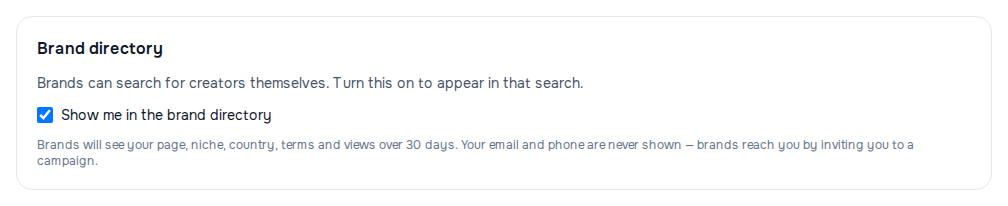
Get into the directory
- Publish your page: only published pages are in the directory.
- Open "Media kit". If you have several pages, pick the one you need with the button showing its title.
- In the "About you" block, fill in "Niche" and "Terms of collaboration" — a brand finds you by them and decides whether to reach out. See how to put together a media kit.
- In the "Brand directory" block, tick "Show me in the brand directory". It saves at once.
Changed your mind — untick the box, and you leave the directory at once. Invitations that have already arrived stay.
What a brand sees in the directory
- your page title and a link to the page;
- the check mark, if you have one — a brand can search "Verified only", see how to get the check mark;
- "Niche" and the page's country, if it is set;
- page views over 30 days;
- the beginning of "Terms of collaboration";
- a line about your past deals, for example "Deals completed: 8 · on time: 7 of 8", see how brands see you.
A brand searches by niche, country and views over 30 days and can show only verified pages; pages with more views come first.
Answer an invitation
An invitation does not arrive by email: it appears in the "Campaigns" section as a campaign card saying "The brand invited you to this campaign.". If you are in the directory, check there yourself.
- Open "Campaigns". If you have several pages, pick the one that was invited.
- Read the card: the reward or the kind of campaign, "Spots", the description, what the brand may do with your post and whether the draft needs approval. More about the card — see how to apply to a campaign.
- Click "Accept" or "Decline".
- "Accept" — the invitation becomes a regular application with the "Post" format: the card shows "Your application: Sent". From there the brand decides whether to select you, as with any application.
- "Decline" — the card shows "Your application: Declined". The brand sees that you declined, not that it did not select you. Declining is final: you cannot apply to this campaign later.
The page's "Owner", "Admin" and "Editor" can answer invitations.
If something went wrong
- "Could not save. Please try again." after ticking "Show me in the brand directory" — if you have not filled in anything in the media kit yet, the box does not save. Type something into "About you", for example "Niche", move to another field and tick the box again. If that does not help, check your role: a "Viewer" cannot change the box.
- A brand cannot find you in the directory — the page is not published, has a scheduled release time or was blocked by the administration, see the page does not open. The brand may also have set a niche or country that does not match yours, a views threshold above yours, or verified pages only.
- "Could not send the application." after "Accept" — you cannot accept an invitation while the page is blocked by the administration; you can decline. This also happens with the "Viewer" role.
- The brand says it invited you, but there is no invitation — reload "Campaigns" and check that the right page is selected. If the campaign is already closed, its invitation is not shown — check with the brand.
Did this article help?
Didn't find an answer?
Our support team will help — write to us in the chat.