How to give an agency or a manager access to your page
Ажурирано: 24. новембар 2026.
Овај чланак још није преведен на ваш језик — приказује се на енглеском.
На овој страници
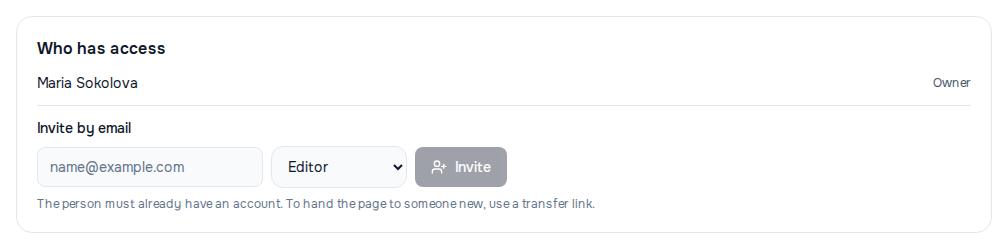
Access is given in "Pages & access": pick the page, enter the person's email in "Invite by email" in the "Who has access" block, choose a role and click "Invite". You stay the owner of the page.
Inviting, changing roles and removing members is up to the page's "Owner" and "Administrator".
Where "Pages & access" is
The section is in the menu when "For managers and agencies" is selected under "Who you are here" on the "Dashboard". If you have "For creators" selected, switch, give access and switch back if you like — nothing is lost, see Getting started in the creator office.
The section opens with "Roster summary" and "Talents". Access is managed further down, in the "Pages and access" block.
Give access
- Open "Pages & access" and scroll down to the "Pages and access" block.
- Click the page in the list.
- In the "Who has access" block, enter the person's email in "Invite by email".
- Next to it, choose a role: "Administrator", "Editor" or "Viewer".
- Click "Invite".
The person appears in "Who has access" straight away, and the page appears in their office. No invitation email is sent, so tell them yourself.
The person must already have a WŬMÙ account with that email. If they have none, they need to create one first, see How to create an account. Or hand them the whole page with a link — see below.
What the roles can do
| Role | Can |
|---|---|
| "Owner" | everything. Only the owner changes the page address, connects an own domain, sets up payments and payouts, exports the subscriber list and deletes the page. A page has one owner |
| "Administrator" | edit and publish the page, see leads, add ad pixels, send newsletters, apply to campaigns, invite and remove members, create a transfer link |
| "Editor" | the same, except ad pixels and access management. Sees leads |
| "Viewer" | only view the page and its statistics. Does not see leads or subscribers and cannot change anything |
There is no role that edits the page without seeing leads: whoever can edit also sees leads. If someone must not see leads, make them a "Viewer".
Give the "Administrator" role only to people you trust as much as yourself: an administrator manages access to the page.
Change a role or remove a member
- Change a role — pick another one in the list next to the member's name. It changes at once.
- Remove — click the "Remove" bin icon next to the member. There is no confirmation: access goes at once. To bring the person back, invite them again.
The owner cannot be removed — their row just says "Owner".
Hand the page to a new owner
This is how an agency gives a creator a page it set up for them. Whoever accepts the link becomes the owner, and you stay an administrator and can keep running the page.
- In the "Transfer the page" block, click "Create a link". If an address is entered in "Invite by email" at that moment, the link is issued to it.
- Copy the link with "Copy link" and send it to the creator.
The link is valid for 7 days and works once. Until it is accepted, it is listed under the button: the email or "no email", and "valid until …".
Accept a page from a link
- Open the link. The "Page transfer" page shows which page you are being given.
- If you are not signed in, click "Sign in to accept" — you come back to the link after signing in.
- Click "Accept the page".
You will see "The page is yours now." and the page editor opens. You are the owner; whoever gave you the link is an administrator. Unless you fully trust them, remove them from "Who has access" straight away or change their role to "Editor": an administrator manages access to the page.
If something went wrong
- "No account with that email." — the person has no account yet or used another email for it. Check the address, or hand the page over with a link.
- "Could not save the change." — the email in "Invite by email" has a typo (this also happens with "Create a link"), or you invited the page owner themselves.
- No "Invite by email" field and no "Transfer the page" block — your role on this page is "Editor" or "Viewer". Only the owner and administrators manage access.
- No "Pages & access" in the menu — "For creators" or "For brands" is selected, see the start of this article.
- The transfer link does not open, or "This link is no longer valid: it expired, was already used or was revoked." — 7 days have passed or the page has already been accepted with it. Ask for a new one.
- "Accept the page" cannot be clicked and there is a yellow box above it — the link was issued to another email, and you are signed in with this one. Usually that means the link was forwarded. If it really is meant for you, tick "This invitation was issued to a different address. I understand and accept the page anyway." and the button becomes active. If not, do not accept it.
- "This page is already yours." — you opened the link with the owner's account. Send it to the person you are handing the page to.
- "The link has expired." or "The link has already been used." — you need a new link.
Да ли вам је чланак помогао?
Нисте пронашли одговор?
Наш тим за подршку ће вам помоћи — пишите нам у ћаскању.