How to put together a media kit for brands
Ажурирано: 24. новембар 2026.
Овај чланак још није преведен на ваш језик — приказује се на енглеском.
На овој страници
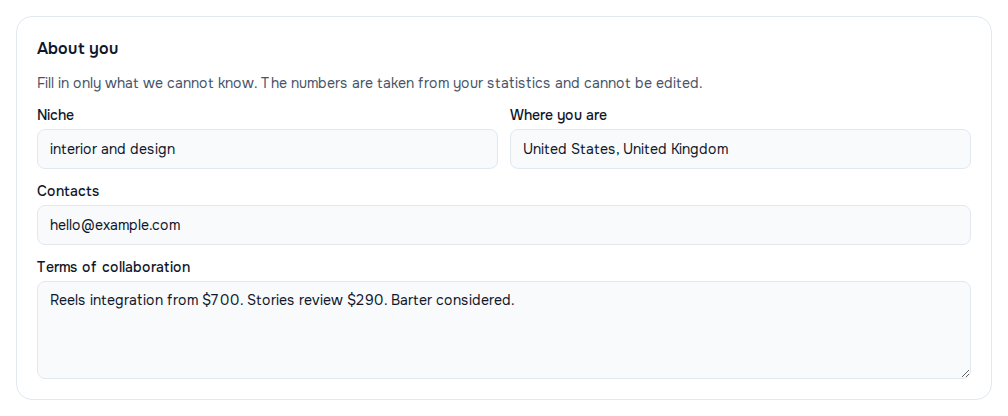
A media kit is a page with your numbers that you send to a brand. Open "Media kit" and fill in the "About you" block: "Niche", "Where you are", "Contacts" and "Terms of collaboration". The statistics fill in themselves — you cannot type or correct them.
Each page has its own media kit. If you have several pages, pick the one you need with the button showing its title.
Fill in "About you"
- Open "Media kit".
- Fill in the fields:
- "Niche" — what you create about, for example "skincare";
- "Where you are" — a city or a country;
- "Contacts" — how to reach you: email, messenger;
- "Terms of collaboration" — formats, prices, timelines, in your own words.
- Move to another field — the change saves. Next to the "About you" heading you briefly see "Saving…", then "Saved".
There is no "Save" button: a field saves when you leave it. Empty fields do not appear in the media kit.
Where the numbers come from
- "Link in Bio" — "Views", "Taps", "Tap rate", up to five links in "Top links" and up to five countries in "Countries" over the last 30 days. These are the same numbers as in your page statistics; clicks on links in letters are not included.
- "Audience" — your follower count on your platforms. You state it yourself: in the "Page" editor, in the "Connected accounts" section, "Followers" field. The section sits below "Social icons" and "Verification" and lists the platforms from your icons. Next to the number a brand sees the date you stated it and either "ownership verified" or "stated by the author". How to verify a platform — see how to get the check mark.
- "Newsletter" — optional, see how to show your newsletter in the media kit.
The numbers are recalculated every time the media kit is opened by link and every time you download the PDF — a brand sees fresh numbers, not the ones from the day you sent it.
What a brand sees
From top to bottom:
- Your page title and address, "Niche" and "Where you are", your page's bio.
- "Audience" — platforms with follower counts.
- "Link in Bio" — page statistics for 30 days.
- "Newsletter" — if you turned it on.
- "Terms of collaboration" and "Contacts" — if you filled them in.
- At the bottom — "Compiled on" with the date and the note "numbers from the page statistics".
How to send the media kit — see how to send your media kit to a brand.
Why "no data" and not zero
A zero reads as "nobody visits you", and an estimate reads as a promise. So wherever we have nothing to show, the media kit says so:
- "No data: no platform connected yet" under "Audience" — no platform has a follower count stated. Enter one in "Connected accounts".
- "No data for the last 30 days yet" under "Link in Bio" — the page had no views in 30 days. Check that it is published and put its link in your profiles.
- "no data" under "Newsletter" — clicks were not counted for any letter in 90 days, see newsletter in the media kit.
If something went wrong
- "Create a page first — the media kit is built from its statistics." — you have no page yet. Click "Create a page".
- "Not saved" next to "About you" and "Could not save. Please try again." — the change did not reach the server. The text stays in the field: click into any field and leave it — the unsaved change goes out with the next one.
- No field saves at all — check your role on this page: a "Viewer" can look at the media kit but not change it. An "Owner", "Admin" or "Editor" can edit it.
- "Could not load the media kit." — click "Retry". If it keeps happening, reload the tab.
- A platform has no "Followers" field — the platform is not in "Social icons", see how to fill your page. A website, email, phone, payment and ticketing services are not an audience and have no such field.
- Nowhere to list past collaborations — there is no separate field for them. List them in "Terms of collaboration".
Да ли вам је чланак помогао?
Нисте пронашли одговор?
Наш тим за подршку ће вам помоћи — пишите нам у ћаскању.